
Dimify vs Lunar: Which Mac Brightness Control App Is Right for You?
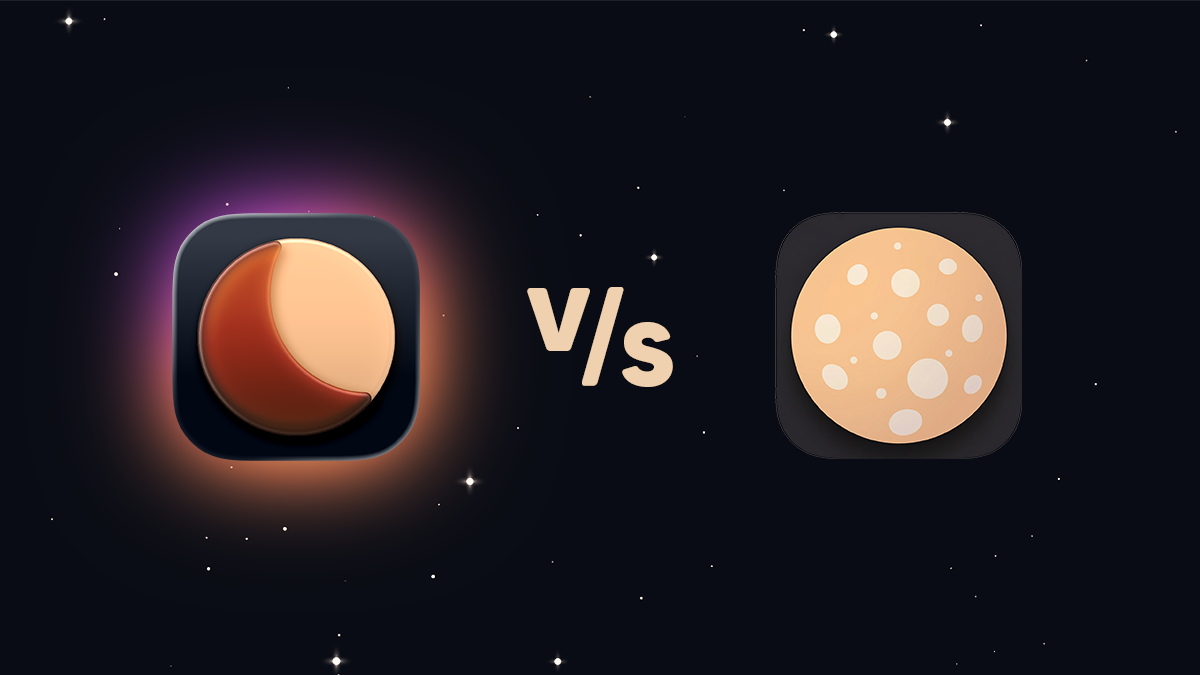
Dimify and Lunar are both Mac utilities designed to give you more control over your displays than macOS provides natively. But they're built around different philosophies: Lunar is primarily an external monitor control tool that uses DDC hardware commands, while Dimify is a display management app focused on brightness, color, and eye comfort across all your screens.
If you've been comparing the two, here's an honest breakdown of where each one shines and where it falls short.
How They Control Brightness
This is the fundamental architectural difference between the two apps.
Lunar relies on DDC (Display Data Channel)—a protocol that sends commands directly to your monitor's hardware. In theory, this lets Lunar control the actual backlight of your external monitor. In practice, DDC support is inconsistent. Many monitors don't support it at all, and even those that claim to can be unreliable—commands get dropped, brightness jumps unexpectedly, or the connection breaks after sleep. TVs, USB-C hubs, KVM switches, and plenty of mainstream monitors simply don't work with DDC. When DDC isn't available, Lunar falls back to a software gamma overlay, which is a noticeably worse experience.
Dimify takes a software-based approach that works universally across all displays—built-in, external, AirPlay, Sidecar—with no dependency on DDC or any specific hardware protocol. Dimify dims at the system level, meaning it works the same way everywhere, and it can push brightness well below macOS's native minimum (sub-zero dimming). If you've ever been in a dark room and wished your Mac could go even dimmer, Dimify handles this natively without needing to check whether your monitor supports a particular protocol.
Lunar also offers sub-zero dimming, though its implementation and reliability vary depending on whether your display supports DDC.
DDC sounds good on paper, but the reality is a lot of compatibility headaches. Dimify's software approach just works—on every display, every time.
Color Filters & Color Temperature
This is one of the biggest gaps between the two apps.
Dimify has a full color filter system with built-in presets—Neutral, Sepia, Warm, Night, and more—plus the ability to create custom color filters (Pro) with precise control over hue, saturation, and intensity. You also get a dedicated color temperature slider to shift your display warmer or cooler independently of the filters. If you use your Mac at night and care about eye comfort beyond just dimming, this is where Dimify excels.
Lunar doesn't offer color filters or a color temperature slider. It has a Night Mode that combines blue light filtering with enhanced contrast and a lower whitepoint, but it's a single toggle rather than a customizable system. You can't create presets, choose specific filter colors, or fine-tune the warmth of your screen. For color temperature control on external monitors, you'd need to pair Lunar with a separate app like f.lux.
Multi-Display Control
Both apps support multiple monitors, but they approach it differently.
Lunar was built from the ground up for multi-monitor setups and it shows. You get per-display brightness and contrast control, the ability to sync your MacBook's adaptive brightness to external monitors (Sync Mode, Pro), and even a Sensor Mode (Pro) that uses an external ambient light sensor. Lunar also includes utilities like swapping monitor positions and fixing display arrangements after sleep—features aimed at power users with complex desk setups.
Dimify Pro also provides independent per-display control over brightness and color filters, plus a global slider to adjust everything in unison. Where Dimify differs is that every display gets the same level of control—there's no question of DDC compatibility. Your MacBook's built-in display, an old HDMI monitor, and a Sidecar iPad all get the same brightness sliders and color filter options.
Lunar's multi-monitor features are impressive on paper, but they're only useful if all your monitors actually support DDC reliably. For consistent control across all display types—including color management—Dimify is the more dependable choice.
Automations & Scheduling
Lunar offers several automation modes. Location Mode (Pro) adjusts brightness based on the sun's position. Sync Mode (Pro) mirrors your MacBook's ambient light adjustments to connected monitors. You can also trigger Lunar actions through macOS Shortcuts, and it has a CLI for scripting.
Dimify's free tier includes sunset/sunrise scheduling. Dimify Pro unlocks fully customizable automations that can control brightness, color filters, and per-display settings based on various triggers. Dimify also integrates with Shortcuts and Siri, so you can incorporate display settings into broader macOS workflows or trigger them with your voice.
Both apps take automation seriously. Lunar's automation is oriented around ambient light adaptation for external monitors. Dimify's is more broadly customizable and includes color filter automation, which Lunar can't do.
Keyboard Shortcuts
Both apps support keyboard shortcuts, and both let you define custom ones.
Lunar uses the standard macOS brightness keys and lets you configure them to control external monitors. You can set it to adjust only the display where your cursor is, which is a thoughtful touch for multi-monitor setups.
Dimify includes keyboard shortcuts on the free tier and lets Pro users define custom shortcuts for any action—toggling filters, jumping to specific brightness levels, activating presets. Both apps are well-served here; it's largely a draw.
AirPlay & Sidecar
Dimify can control brightness on AirPlay and Sidecar displays (color filters aren't yet supported on these). Lunar has partial Sidecar support for some displays, but it depends on the display and connection type. Neither app has full feature parity on wireless/Sidecar screens, but Dimify's universal software approach gives it more reliable coverage.
Installation & Compatibility
Dimify is available on the Mac App Store, which means straightforward installation, automatic updates, and Apple's review process for security.
Lunar is not available on the Mac App Store due to the low-level system access it needs for DDC commands. You download it directly from lunar.fyi. This isn't necessarily a negative—Lunar is open source on GitHub—but it does mean manual updates and no App Store purchase management. It's also worth noting that recent macOS updates (macOS 26.3+) have broken some of Lunar's features, like its "Enhance Contrast" and "Unlock preset" capabilities.
Pricing
Dimify has a free tier that covers brightness control, sub-zero dimming, color temperature, basic color filters, keyboard shortcuts, Shortcuts/Siri integration, and sunrise/sunset scheduling. Dimify Pro is a one-time $2.99 purchase for custom color filters, full automations, per-display control, and custom keyboard shortcuts.
Lunar costs $23 (lifetime license). There is no free tier—just a 14-day trial. After that, you pay or you stop using it. The $23 gets you DDC control, Sync Mode, Location Mode, Sensor Mode, XDR Brightness, and Auto BlackOut.
Dimify Pro costs less than a seventh of Lunar, and Dimify's free tier already includes color filters, sub-zero dimming, and scheduling—features Lunar doesn't offer at any price.
Quick Comparison
| Feature |  Dimify Dimify |
 Lunar Lunar |
|---|---|---|
| Brightness control | ✓ | ✓ |
| Sub-zero dimming | ✓ | ✓ |
| DDC hardware control | ✕ | ✓ |
| Color temperature | ✓ | ✕ |
| Color filters | ✓ | ✕ |
| Custom color filters | Pro | ✕ |
| Automations | ✓ | ✓ |
| Per-display control | Pro | ✓ |
| Keyboard shortcuts | ✓ | ✓ |
| Custom keyboard shortcuts | Pro | ✓ |
| Shortcuts / Siri | ✓ | ✓ |
| AirPlay / Sidecar | Limited | Limited |
| Mac App Store | ✓ | ✕ |
| Price | Free / $2.99 | $23 |
The Bottom Line
Dimify and Lunar are built for overlapping but distinct use cases.
Lunar is built around DDC hardware control for external monitors. If you happen to have monitors that support DDC reliably, its Sync Mode and Sensor Mode can be useful. But DDC compatibility is a gamble—many monitors don't support it, and even those that do can be flaky. At $23 with no free tier and no color management features, it's a narrow tool for a narrow audience.
Dimify works on every display, every time—no DDC compatibility to worry about. It offers brightness control, sub-zero dimming, color filters, custom presets, automations, and per-display management. The free tier already does more than Lunar in several areas, and Pro unlocks everything for $2.99.
For most Mac users—especially those on a MacBook, those who care about eye comfort, or anyone with a mixed-display setup—Dimify is the more complete, more reliable, and more affordable choice.
← Back to Blog