
How to Dim Your Mac Screen Below the Minimum Brightness
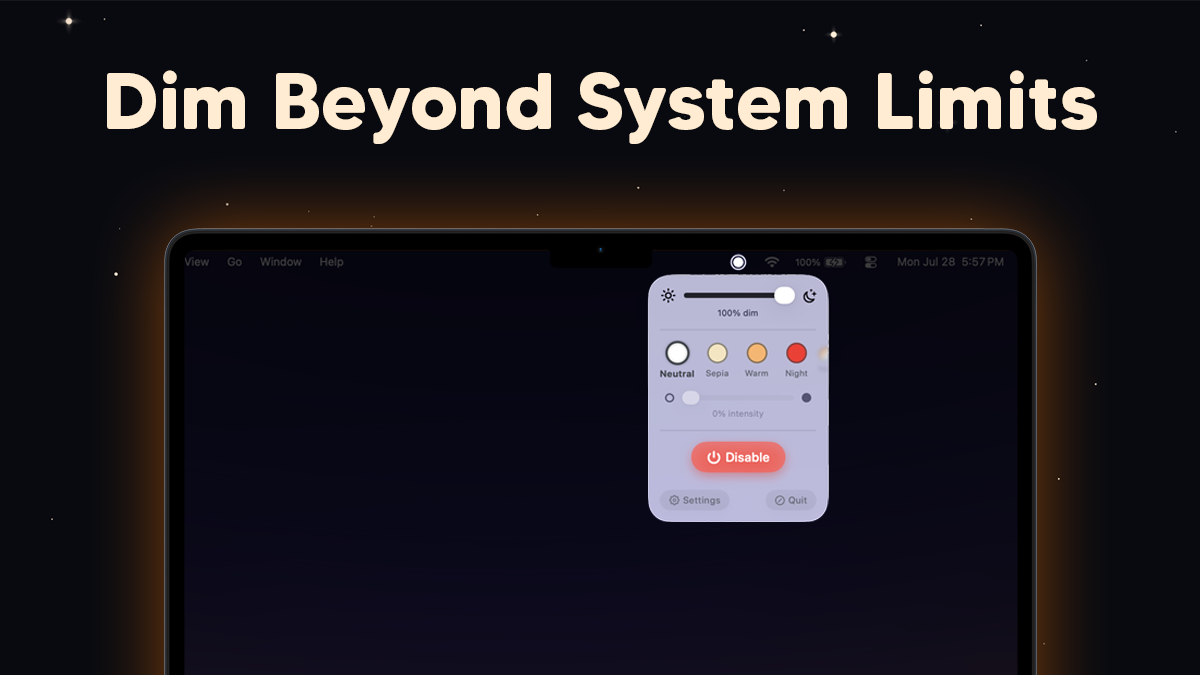
You're in a dark room, the lights are off, and your MacBook screen is burning your retinas—even at the lowest brightness setting. You press F1 until the slider bottoms out, and it's still painfully bright. Sound familiar?
This is one of the most common complaints from Mac users who work late, read in bed, or are sensitive to light. macOS has a hard minimum brightness floor, and for many people it's simply not dark enough. The good news is there are several ways around it.
Why macOS Has a Minimum Brightness
Apple sets a brightness floor to ensure the display remains usable. If the screen went truly dark, you might think it was off or have trouble reading anything. It's a reasonable default for daytime use, but it doesn't account for pitch-dark rooms at 2 AM.
There's also a practical limitation: the LED backlight on your Mac's display can only dim so far before it simply turns off. Software-based dimming can go further because it reduces the brightness of the image being sent to the display, independent of the backlight.
Method 1: Use Dimify (Recommended)
Dimify is a macOS menu bar app built specifically for this problem. It gives you a brightness slider that goes well below the system minimum—sometimes called "sub-zero dimming."
Here's what makes it the best option:
- True sub-zero dimming — Drag the slider past where macOS stops. Your screen can go genuinely dark, perfect for nighttime use.
- Works on all displays — Built-in, external monitors, AirPlay, Sidecar. No compatibility questions.
- Color filters — Combine dimming with a warm color filter to reduce blue light at the same time. Presets like Sepia and Night are one click away.
- Keyboard shortcuts — Adjust brightness without opening anything. Just press your shortcut and the screen dims.
- Automations — Set Dimify to automatically dim your screen at sunset or on a schedule, so you never have to think about it.
- Lives in the menu bar — Lightweight, quiet, and out of the way until you need it.
Dimify's sub-zero dimming is available on the free tier. No purchase required to go darker than macOS allows.
Method 2: Night Shift
Night Shift (System Settings > Displays > Night Shift) shifts your display's color temperature toward warmer tones on a schedule or manually. This does not reduce brightness—it only changes the color. Your screen is still just as bright, just more orange.
Night Shift is useful for reducing blue light exposure, but if your problem is that the screen is too bright, it won't help. You can combine it with actual dimming for the best result: use Dimify to lower brightness below minimum, and Night Shift (or Dimify's own color filters) to warm the color.
Method 3: Dark Mode
Switching macOS to Dark Mode (System Settings > Appearance > Dark) reduces the amount of white on screen, which makes the overall display feel less bright. Apps that support Dark Mode will show light text on dark backgrounds instead of the reverse.
Dark Mode doesn't change your display's actual brightness level, but it significantly reduces the total light output because dark pixels emit less light. It's a good baseline that works well in combination with sub-zero dimming.
Method 4: Terminal Commands
If you're comfortable in Terminal, you can use the built-in brightness command or manipulate the display's gamma tables via CoreGraphics APIs. For example, third-party tools like Gamma Dimmer use gamma table adjustments to reduce visible brightness.
This approach is fine for tinkering, but it's not practical for daily use. There's no simple slider, no scheduling, no presets, and you risk messing up your color calibration if you get the values wrong. It's worth knowing it exists, but there's little reason to use it when better tools are available.
What About External Monitors?
External monitors have their own minimum brightness, controlled by physical buttons (OSD) or sometimes via DDC. If your external display is too bright at its lowest setting, your options are more limited than with a MacBook's built-in display.
Dimify works on external monitors too—it applies a software dim layer over any connected display, regardless of make or model. This means you can dim an external monitor below its hardware minimum the same way you'd dim your MacBook. No DDC support required, no compatibility issues.
Why Brightness Matters at Night
This isn't just about comfort. Research consistently shows that bright screens at night suppress melatonin production, the hormone that regulates your sleep-wake cycle. A 2021 study found that while color temperature alone had limited effects on sleep, overall screen brightness was a more significant factor.
If you're using your Mac in the hours before bed, getting the screen as dim as possible—not just warmer—is the most impactful thing you can do for your sleep quality. This is exactly why sub-zero dimming exists, and why macOS's built-in minimum isn't enough for evening use.
The Best Setup for Night Use
Here's the combination that works best:
- Enable Dark Mode to reduce total light output from the UI
- Use Dimify to bring brightness below the macOS minimum
- Apply a warm color filter (Dimify's Night or Sepia preset, or Night Shift) to reduce blue light
- Set it to automate so it kicks in at sunset without you thinking about it
With this setup, your Mac becomes genuinely comfortable to use in a dark room—no squinting, no eye strain, no blasting your retinas at midnight.
← Back to Blog