
Best Mac Apps for Reducing Eye Strain in 2026
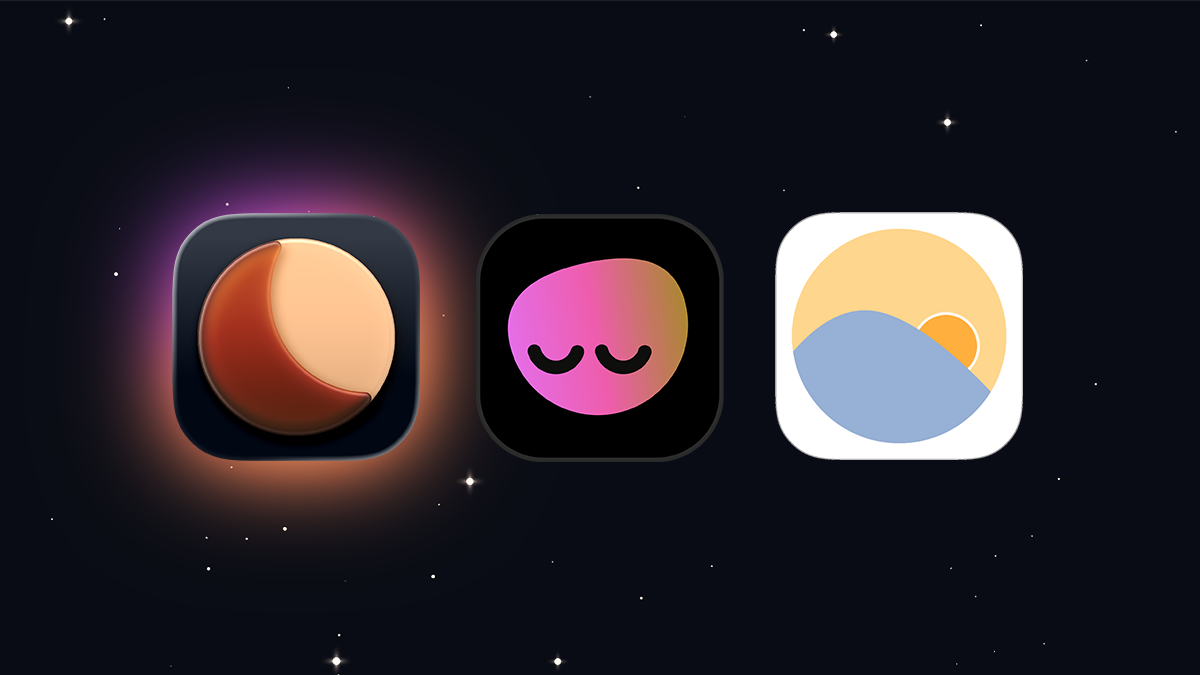
If you spend hours on your Mac every day, eye strain is almost inevitable. Dry eyes, headaches, blurred vision, that burning feeling after a long session—digital eye strain affects over half of all computer users, according to the American Optometric Association.
macOS has some built-in tools (Dark Mode, Night Shift), but they only go so far. The right combination of apps can make a real difference. Here are the best Mac apps for reducing eye strain in 2026, what they actually do, and which ones are worth your time.
What Actually Causes Eye Strain?
Before diving into apps, it helps to understand what you're solving for. Contrary to popular belief, blue light isn't the primary cause of digital eye strain. The American Academy of Ophthalmology has stated there's no meaningful evidence linking blue light from screens to eye damage.
The real culprits are:
- Screen brightness mismatch — When your screen is significantly brighter or dimmer than your environment, your eyes work harder to adjust.
- Reduced blinking — You blink about 66% less when staring at a screen, leading to dry, irritated eyes.
- Constant focus at one distance — Your eye muscles fatigue from holding focus on something 1–2 feet away for hours.
- Glare and reflections — Bright spots on the screen force your eyes to constantly readjust.
Blue light does affect sleep by suppressing melatonin, so filtering it in the evening is still worthwhile. But for actual eye comfort during the day, brightness management matters more than color.
1. Dimify — Brightness & Color Control
Price: Free (Pro: $2.99) | Available on: Mac App Store
Dimify is a menu bar utility that gives you full control over your display's brightness and color. It's the most complete single app for eye comfort on Mac.
Why it helps with eye strain:
- Sub-zero dimming — Reduce brightness below macOS's minimum. Essential for dark room use when even the lowest setting is too bright.
- Color filters — Built-in presets (Sepia, Warm, Night) and a color temperature slider let you reduce blue light and adjust the display's warmth to match your environment.
- Per-display control (Pro) — If you have multiple monitors, you can set different brightness and color levels for each. No more one screen blinding you while the other is fine.
- Automations — Schedule brightness and filter changes to follow your day. Set it once and forget it.
- Works everywhere — Built-in display, external monitors, AirPlay, Sidecar. No DDC compatibility to worry about.
Dimify is the best option if you want one app that handles both brightness and color across all your screens. The free tier covers sub-zero dimming, basic color filters, keyboard shortcuts, and scheduling.
2. f.lux — Blue Light Filter
Price: Free | Available on: justgetflux.com
f.lux is the original blue light filter app, and it's still good at what it does. It automatically warms your screen's color temperature after sunset based on your location, transitioning gradually so you barely notice.
Why it helps with eye strain:
- Automatically reduces blue light in the evening, which helps with sleep quality
- Customizable color temperatures down to 1200K ("Candle" mode)
- Set-and-forget — once configured, it runs silently
Limitations: f.lux does not control brightness. It only changes color. If your screen is too bright, f.lux can't help. It also hasn't received a major update since 2023. For blue light filtering alone it's solid, but for comprehensive eye comfort you'll need to pair it with a separate brightness tool.
3. macOS Night Shift — Built-In Color Shift
Price: Free (built into macOS) | Available in: System Settings > Displays > Night Shift
Night Shift is Apple's built-in answer to blue light filtering. It shifts your display toward warmer colors on a sunset/sunrise schedule or a custom time range.
Why it helps with eye strain:
- Zero setup — just enable it and choose a schedule
- Reduces blue light in the evening, which helps with sleep
- No additional app to install
Limitations: Night Shift doesn't reduce brightness, only color. Its color temperature range is more limited than f.lux or Dimify. And there's no way to create custom presets or apply it to specific displays. It's a decent starting point, but not a complete solution.
4. macOS Dark Mode — Built-In Theme
Price: Free (built into macOS) | Available in: System Settings > Appearance
Dark Mode inverts the UI to show light text on dark backgrounds. This doesn't technically change your display's brightness, but it drastically reduces the total light output because dark pixels emit far less light than white ones.
Why it helps with eye strain:
- Reduces overall light emission by eliminating large white backgrounds
- Makes the screen feel less harsh, especially in dim environments
- Most apps support it natively
Limitations: Not all apps or websites support Dark Mode. Web browsing in particular can still blast you with bright white pages. And again, it doesn't change actual brightness.
5. A Break Reminder App
No screen setting replaces actually looking away from your screen. The 20-20-20 rule—every 20 minutes, look at something 20 feet away for 20 seconds—is the single most effective thing you can do for eye strain, according to optometrists. The problem is remembering to do it.
Several Mac apps can nudge you:
- Stretchly (Free, open source) — The most popular break reminder on Mac. Configurable mini-breaks and long breaks, pauses automatically when idle or in Do Not Disturb mode, and follows your system theme. Available via Homebrew.
- LookAway (Free with Pro) — Purpose-built for the 20-20-20 rule. Automatically pauses during meetings, screen recordings, and gaming so it doesn't interrupt you at the wrong time.
- Fresh Eyes ($3.99, Mac App Store) — Lightweight and minimal. Sits in the menu bar and reminds you every 20 minutes. No subscriptions, no bloat.
A break reminder paired with a good brightness app is the most impactful combination for eye health.
The Best Combination
No single app solves eye strain completely. The most effective setup combines several approaches:
- Dimify for brightness control below the macOS minimum, color filters, and per-display management
- Dark Mode enabled system-wide to reduce total light output
- Regular breaks — The 20-20-20 rule matters more than any app. Every 20 minutes, look at something 20 feet away for 20 seconds.
The most impactful change is getting your screen brightness right. If it's matched to your environment—dimmer in dark rooms, not eye-searingly bright during late-night sessions—everything else is incremental. That's why a proper brightness control app is the foundation, and everything else layers on top.
← Back to Blog